Videos

Guides & walkthroughs

Using the Sync tool in Lightroom to save time

In this video, I show a simple Lightroom tool that saves me time when editing similar photos. Using a set of robin images taken within seconds of each other, I demonstrate how to make one set of adjustments and then sync those edits across the whole group.

lightroom photo editing lightroom tips wildlife
Watch on YouTube →
Key points

This little tool in Lightroom saves me so much time when I’m editing my photos.
Lightroom is my favourite software for editing photos. I always shoot in RAW because it gives me much more control over the edits I want to make.
So this is a robin that I took at the weekend. He was very happy to pose for me. The robins at the RSPB are very well trained.
I took quite a few photos, as you can see down here, and they were all taken within seconds of each other, so I know they’re all going to need very similar edits.
So I’m going to start with the first photo and make some of the edits that I want. This photo doesn’t need a huge amount of editing.
It needs a little bit of a boost to the exposure, and I’m also going to boost the shadows slightly, add a little bit of texture, and increase the vibrance.
So here’s the before and after. It’s only subtle, but it just makes the photo a little bit brighter and gives it a little bit more pop.
I want to apply these changes to all of the photos, so I’m going to Shift-click the last photo in the set. And the tool that saves me a lot of time with this is the Sync button.
That opens a pop-up menu, which I don’t think you can see in this video, but it allows you to select what you want to synchronise. I’m just going to leave the default settings selected and click Synchronise.
And then you’ll see the settings applied to all of the selected photos. So I can go back in, reselect the first image, and make any little individual changes that I want.
For example, I’m just going to crop this photo because there’s a little bit of dead space at the top that I don’t really want.
And there you have it. That’s the tool in Lightroom that saves me so much time when I’m editing my photos.
How to Get More Creative With Your Photography

A simple three-step photography exercise to help you improve your images without buying any extra gear - you can even use the camera on your smartphone!

Watch on YouTube →
Key points

In this video, I share a simple three-step photography exercise to help you improve your images without buying any extra gear. By focusing on one subject, taking 25 slightly different photos, and then reviewing the results, you can build creativity and discover the styles and perspectives you like most.
How can you improve your photography without buying extra gear in three easy steps?
Now, this is for everybody. You don’t have to have an SLR to use this little tutorial, and it is something that I learned from somebody else.
And that is step one: choose a subject. Just one subject or scene.
It could be your coffee mug. It could be the cat. It could be the view out your window.
For me, this weekend it was a pier on the Welsh coast, because I still do need to challenge myself to get creative.
So step two is to take 25 photos of this object or scene, but change something in every single photo.
It could be a setting on your camera. It could be whether you use portrait or landscape. It could be that you move slightly to the left, or you try kneeling down for a different perspective.
Just anything, but stop at 25.
Then step three is to go back and review what you’ve taken. You might be really surprised with some of the results, and you might find that there’s one style you particularly like.
Taking 25 photos means you’ve got to get creative, so give it a try and drop me a comment. Let me know how you got on and what your subject was. I would love to hear.

How to Get Sharper Photos in Less Than a Minute

Three quick tips to help you get sharper photos in under a minute. From checking your shutter speed to thinking about lens weight and using a tripod, these simple changes can make a real difference to your images.

Watch on YouTube →
Key points

People keep asking how you get sharper photos.
Well, here’s how in less than a minute.
The first thing you need to check is your shutter speed. It’s the most likely culprit. I find that if it’s important, using shutter mode helps me out a lot.
I also found that the weight of your lens makes such a difference. I take nature photos, and I was using a super zoom lens that was massively heavy. I’ve now swapped it out for a prime lens.
It means I’ve got to zoom with my body instead of the lens, but I’m much happier with the photos.
The third thing is, if the shot allows for it, use a tripod and make the most of the timer function on your camera. Set it to two seconds, take the photo, and then move away.

Short bits & behind the scenes

Short form content from the field. Click any video to watch on TikTok 📱

A fun and creative way to learn about composition and the settings on your camera

A fun and creative way to learn about composition and the settings on your camera

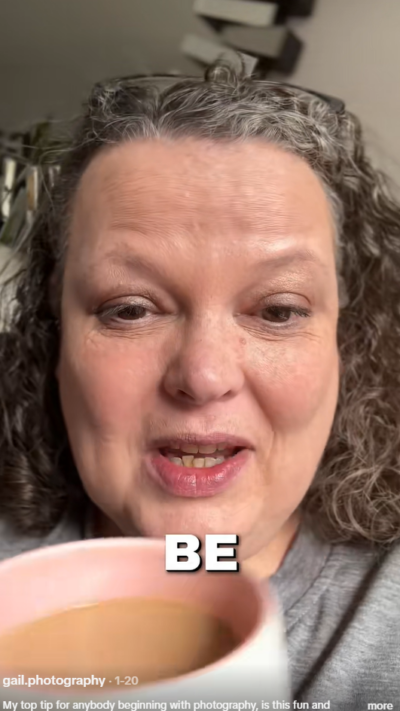
My top tip for anybody beginning with photography, is this fun and creative way to learn about composition and the settings on your camera. The mistakes are as important here as the shots that you love!

photography tips composition camera settings
Watch on TikTok →
Crop sensor vs full frame, two different shots!

Crop sensor vs full frame, two different shots!

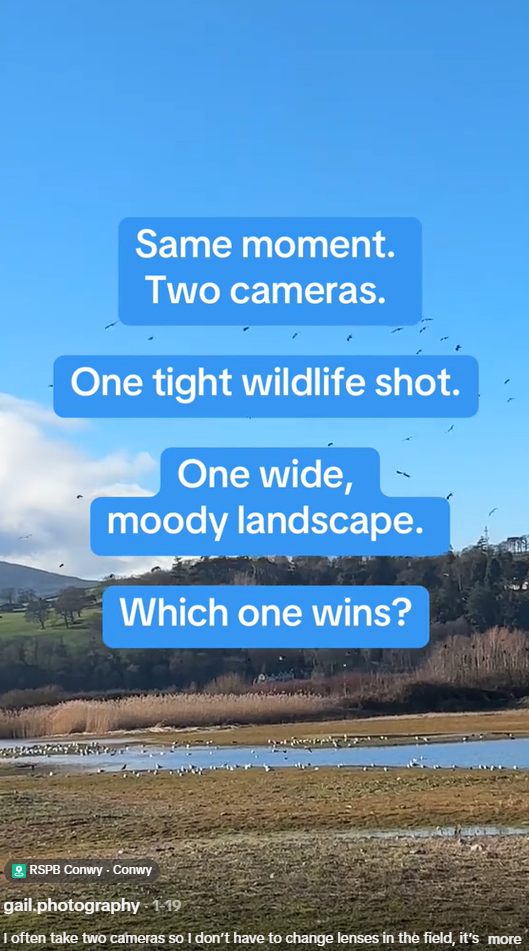
I often take two cameras so I don’t have to change lenses in the field, it’s moments like these when the Lapwings took flight that reminded me why I choose the burden of carrying two heavy cameras!

wildlife photography lapwing RSPB Conwy sensor size d500 d750
Watch on TikTok →
What my phone saw vs what I captured

What my phone saw vs what I captured

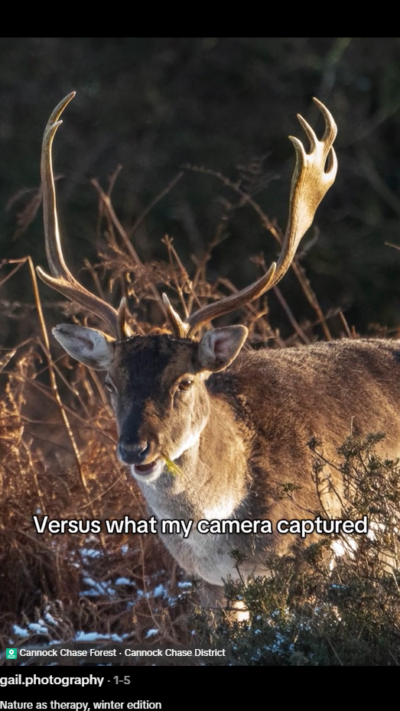
A comparison of what the eye (or phone) sees versus what I capture with my camera.

wildlife winter dslr photography stag
Watch on TikTok →